
Recommended products
How to Update Your Payment Details on Skedda
Updating your payment information via Skedda is simple, and to show you how to do it we've provided the required steps for both Desktop and Mobile.
| Go to Desktop 🖥️ | Go to Mobile 📱 |
If you need any help, please don't hesitate to contact us using one of the methods provided here.
Desktop 🖥️
If you need to update your payment details for booking practice rooms via Desktop, below are the few simple steps required to complete this via the Skedda website.
Step 1
Log in to your profile via the Skedda portal here.
Step 2
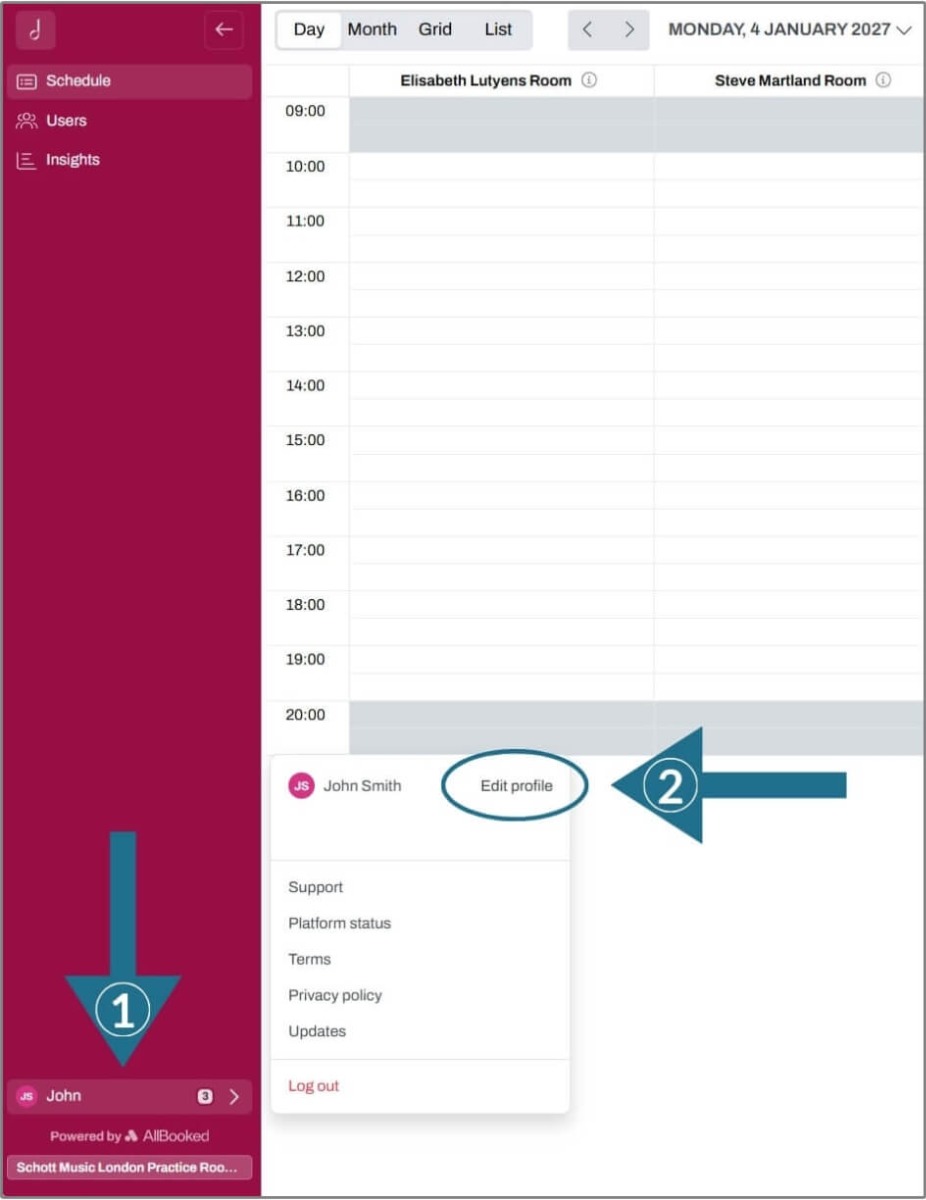
Once you've logged in, click the Profile button at the bottom of the screen (arrow 1), and then select Edit Profile (arrow 2).
Step 3
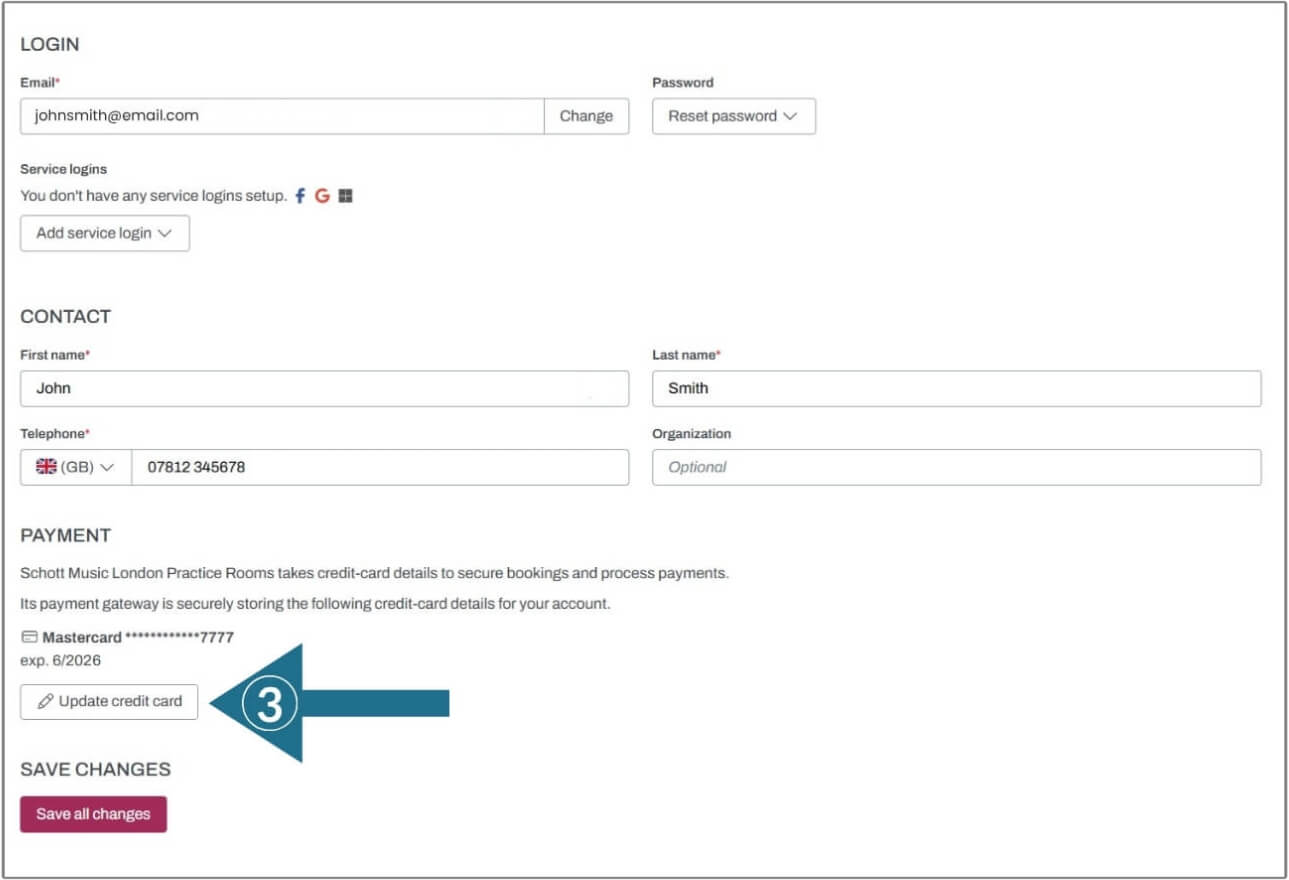
Below the Login and Contact options, you should see the Payment section where you can click the Update credit card button to enter in your new card details (arrow 3).
Step 4
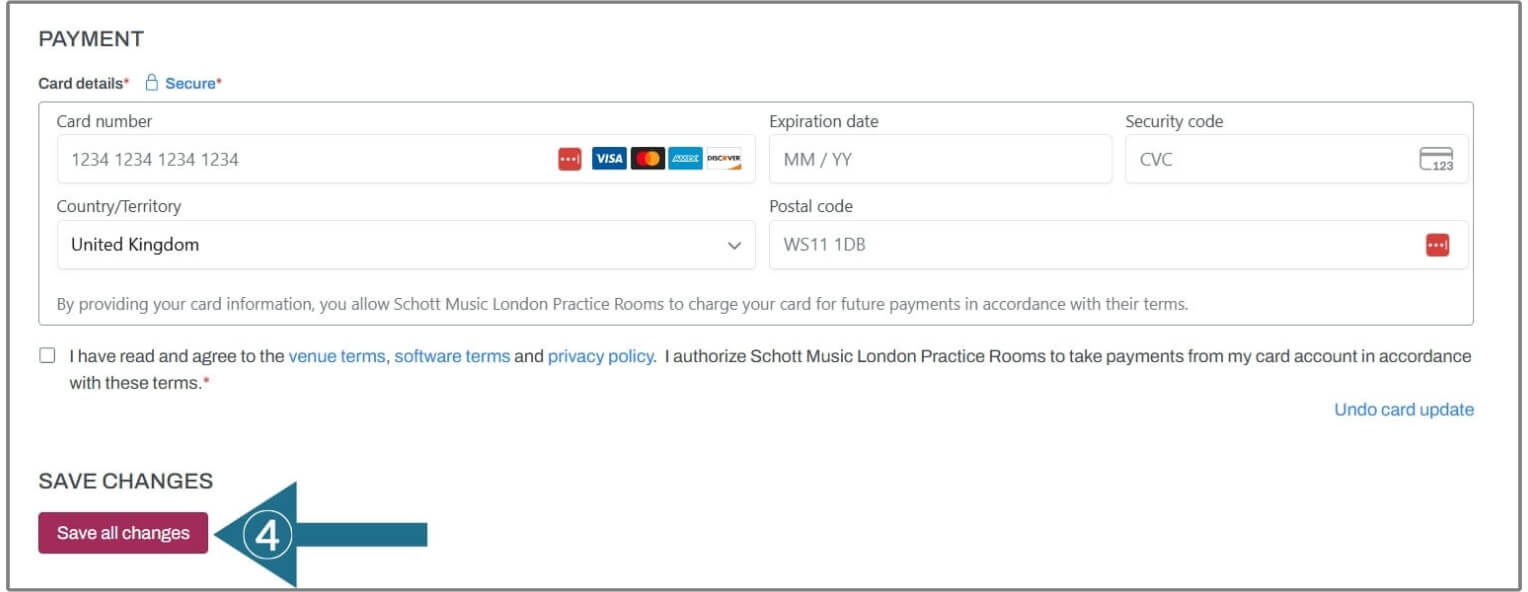
Here you'll provide all the required card details, read and agree to the relevant terms and policies by ticking the check box, and click Save all changes (arrow 4).
Once confirmed, your new card will be used for future bookings.
Mobile 📱
If you need to update your payment details for booking practice rooms via Mobile, below are the few simple steps required to complete this via the Skedda website.
Step 1
Log in to your profile via the Skedda portal here.
Step 2
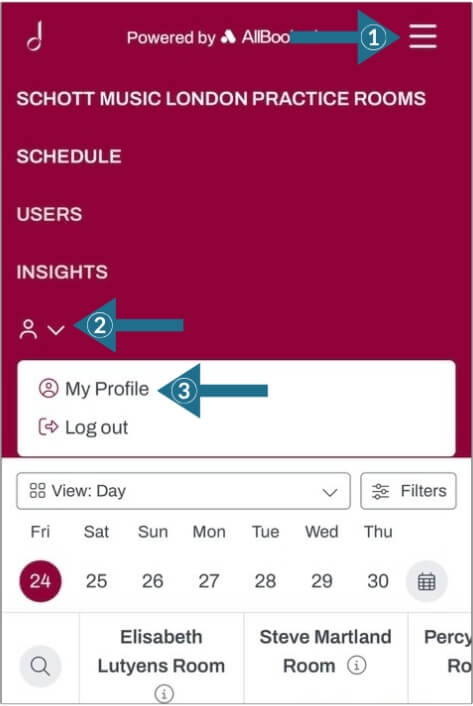
Once you've logged in, open the Menu (arrow 1), click the Profile Icon (arrow 2), and then select Edit Profile (arrow 3).
Step 3
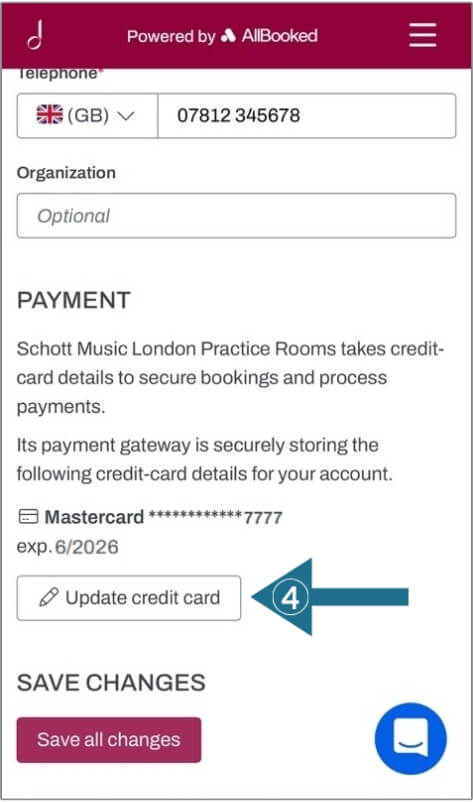
If you swiped down the screen, you should come to the Payment section where you can click the Update credit card button to enter in your new card details (arrow 4).
Step 4
Here you'll provide all the required card details, read and agree to the relevant terms and policies by ticking the check box, and click Save all changes (arrow 5). Alternatively, you can add select Apple Pay as your payment method if you're updating with an Apple product.
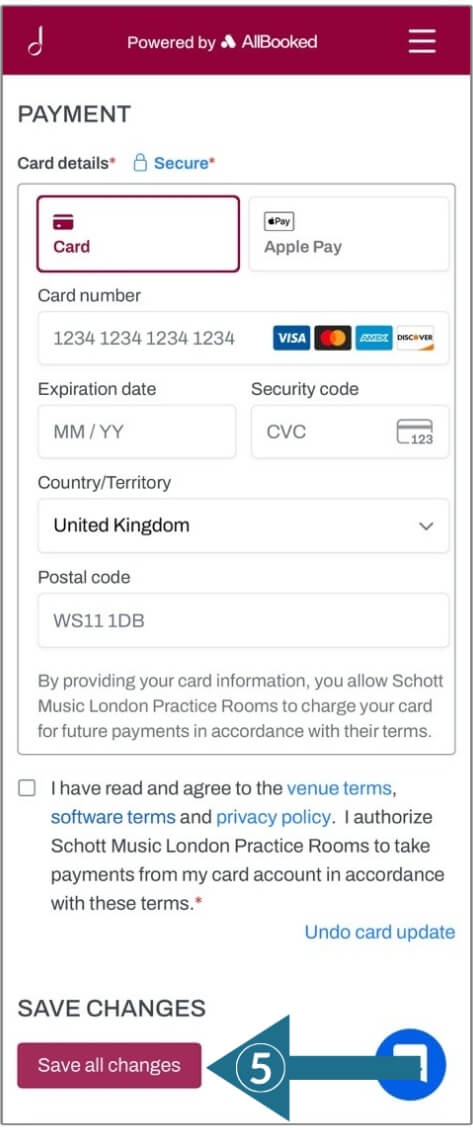
Once confirmed, your newly saved payment option will be used for future bookings.


